CDN
One of the fastest ways to integrate Lineicons into your project is by using our CDN. Our CDN allows you to start adding icons to your site with just a few lines of code—there is no need to host files on your server.
Benefits of Using the CDN
- Quick Setup: Integrate icons into your project in minutes.
- No Hosting Required: Reduce server load by using a reliable external resource.
- Seamless Updates: Access the latest icon updates without any manual file management.
How to Use the CDN
Include the appropriate CDN link in the <head> section of your HTML file, and you’re ready to use Lineicons across your project.
Free CDN
If you are using the free version of Lineicons, copy and paste the following links into the <head> section of your HTML file:
<link
  rel="stylesheet"
  href="https://cdn.lineicons.com/5.2/line/lineicons.css"
/>

<link
  rel="stylesheet"
  href="https://cdn.lineicons.com/5.2/solid/lineicons-solid.css"
/>
Load only the styles you use. Each stylesheet adds its own font file to the page, so skip the Solid link if you only use line icons.
Features of the Free CDN:
- Access to thousands of essential icons for personal or commercial use.
- Easy to implement and start using without additional setup.
Pro CDN
For users who need access to the complete set of premium Lineicons (31,204 icons), the Pro CDN is available. Follow these steps to set up and use the Pro CDN:
- Open CDN Settings: Log in and go to Profile > CDN Settings.
- Authorize your domains: Click Add New Site and add each domain that will load the Pro icon font.
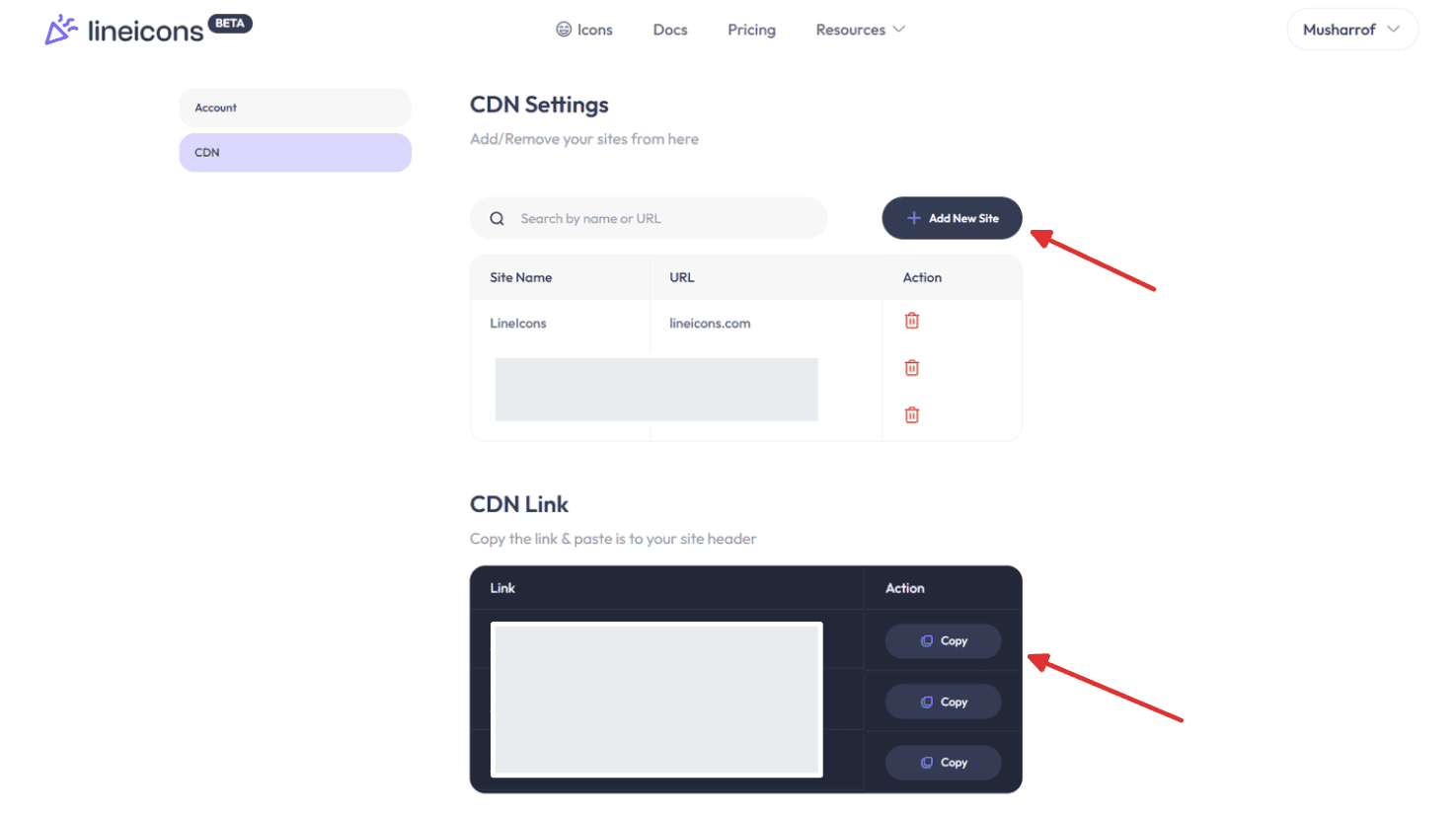
- Copy the CDN link: Scroll down to the CDN Link section, copy the provided link, and add it to the
<head>section of your HTML file.
<link rel="stylesheet" href="https://pro-cdn.lineicons.com/your-specific-url" />The Pro CDN only serves domains you have authorized. Add your staging and preview URLs too, or icons will not load there.
Note: The number of sites you can authorize for the Pro CDN depends on your subscription plan . You can modify your authorized sites at any time based on project requirements.
Important Notes:
- Usage Limits: The Pro CDN is subject to the terms of your subscription plan, so check your plan details for specific usage limits.
- Site Authorization: Ensure that your site is authorized to avoid loading issues with the Pro CDN.
Font Families
Each style ships as its own font, and the font family depends on the stylesheet you load:
| Stylesheet | Font family |
|---|---|
Free icons (5.2/line/lineicons.css) | lineicons-free |
| Solid | lineicons-solid |
| Duotone | lineicons-duotone |
| Bulk | lineicons-bulk |
| Line (downloaded Pro font files) | lineicons |
The exact name is declared in the @font-face rule at the top of each stylesheet. Check it there if you are unsure.
You only need the family name when you:
- Write your own CSS for the icon classes.
- Fix a conflict where another stylesheet overrides the icon font.
- Install the font in a design app.
Using the Font Family in Your Own CSS
.lni {
  font-family: "lineicons-free" !important;
}
Match the family to the style you loaded. For example, use lineicons-solid with the Solid stylesheet.
Size, Color, and Rotation
Icon font glyphs behave like text, so you style them with plain CSS.
<i class="lni lni-telephone-3 phone-icon"></i>.phone-icon {
font-size: 32px; /* size */
color: #4a6cf7; /* color */
display: inline-block; /* needed for transform */
transform: rotate(90deg); /* rotation */
}With Tailwind CSS:
<i class="lni lni-telephone-3 inline-block rotate-90 text-3xl text-blue-600"></i>Accessibility
- Add
aria-hidden="true"to decorative icons so screen readers skip them. - For icon-only buttons, put
aria-labelon the button, not on the icon.
<button type="button" aria-label="Call us">
  <i class="lni lni-telephone-3" aria-hidden="true"></i>
</button>
Troubleshooting
- Icons show as empty squares: The stylesheet is not loaded, or you loaded the wrong version. Check that the
<link>points to/5.2/. - Some icons are missing: The stylesheet for that style is not loaded, or the icon is Pro and needs the Pro CDN.
- Icons broke after upgrading from v4: Class names changed in v5. Copy the current class name for each icon from lineicons.com/icons .
- Pro icons do not load on one domain: That domain is not authorized. Add it in Profile > CDN Settings.
- The wrong font shows: Another stylesheet is overriding
font-family. Set the family on.lnias shown in Using the Font Family in Your Own CSS.